



How to Set Up the MyMazda App
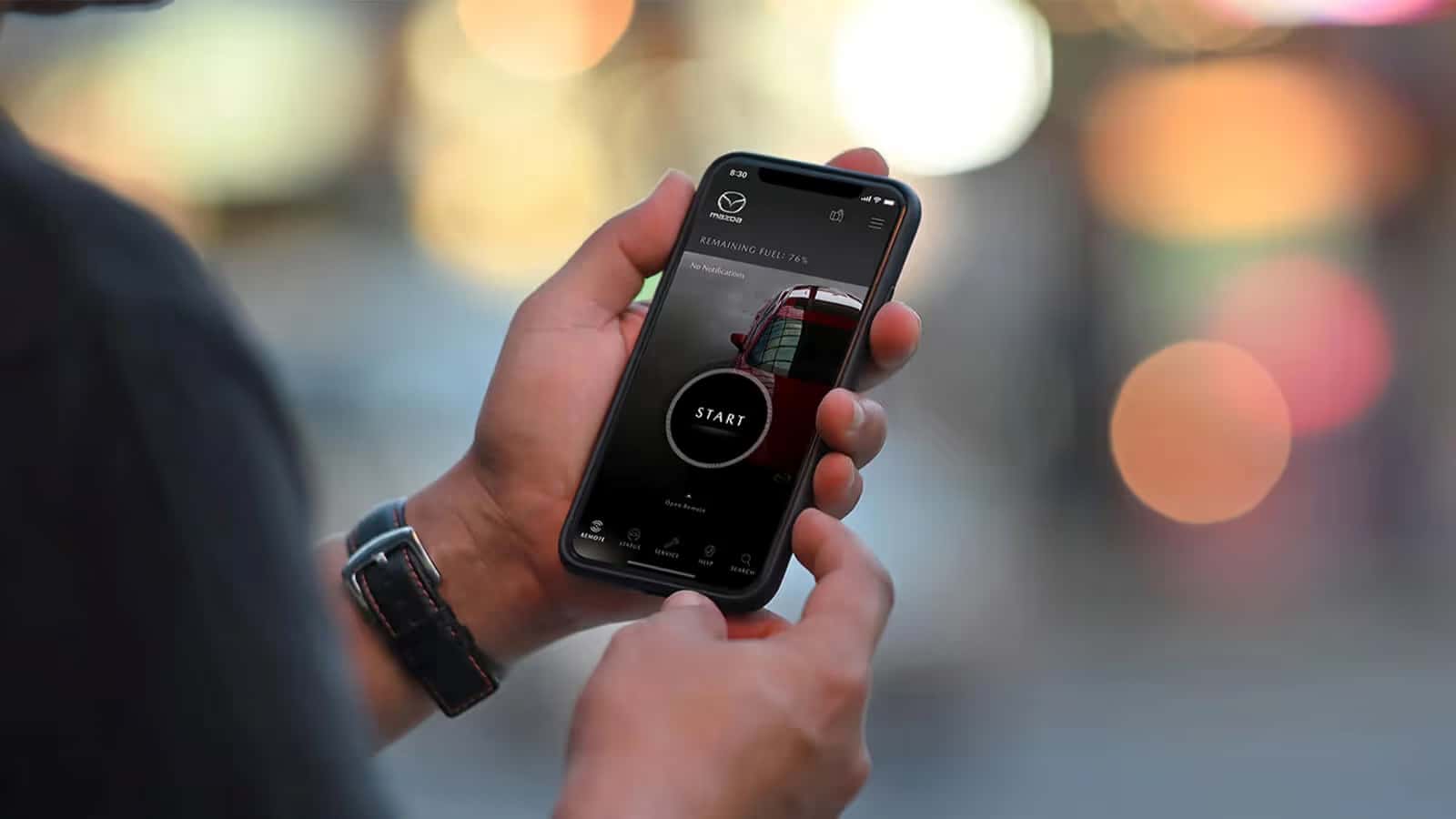
Your Mazda already delivers how driving should feel, and your smartphone can now deepen that connection. The MyMazda App puts vehicle status, remote features, and service tools in your pocket, and setup is refreshingly quick. At AutoNation Mazda Arapahoe in Centennial, CO, we love helping you unlock that convenience the day you drive home.
What the MyMazda App Brings to Your Drive
Through Mazda Connected Services™, the app lets you check a vehicle health report, lock or unlock the doors, and remotely start the engine on equipped models. Imagine warming the cabin before a snowy Colorado morning without ever stepping outside.
Setting Up the MyMazda App Step by Step
Getting started is simple, and you only need your phone and your vehicle identification number (VIN). Follow these steps:
- Download the MyMazda App from the Apple App Store® or the Google Play™ Store.
- Tap “Sign Up” and follow the prompts to create your MyMazda account.
- Tap Add Vehicle, then scan the VIN barcode with your phone camera or enter it manually.
- Tap Validate to confirm the VIN and link your Mazda to your account.
- Tap Enroll, review the terms, and activate Mazda Connected Services™.
If your customer information is already registered with your dealer, your VIN may appear automatically. Keep in mind that the app needs an internet connection to communicate with your vehicle. If enrollment stalls, wait several minutes and try again.
Get Connected with MAZDA in Centennial, CO
The MyMazda App turns everyday ownership into a more connected, confident experience. Bring your phone to your next visit, and we can walk through setup together. Our team at AutoNation Mazda Arapahoe in Centennial, CO is ready to help you get the most from your vehicle.
0 comment(s) so far on How to Set Up the MyMazda App